Online Registration (vers2)
March 3, 2025 by sygardner
Technology Agreements
April 24, 2020 by Tanner Crook
Technology Agreements
Third-Party Accounts
At Lincoln County School District #2 (LCSD#2), we use various third-party systems (programs and services) to support the education of your child and are seeking your permission to provide accounts to these systems for your child. These systems may include, but are not limited to: Google, Apple, Microsoft, Canvas, Renaissance Learning (Accelerated Reader), Infinite Campus, Adobe, Pearson (Math XL), Wyoming Department of Education, and others.
Third Party Account Agreements
April 20, 2020 by Tanner Crook
Third-Party Account Agreements
At Lincoln County School District #2 (LCSD#2), we use various third-party systems (programs and services) to support the education of your child and are seeking your permission to provide accounts to these systems for your child. These systems may include, but are not limited to: Google, Apple, Microsoft, Canvas, Renaissance Learning (Accelerated Reader), Infinite Campus, Adobe, Pearson (Math XL), Wyoming Department of Education, and others.
By agreeing, you give permission for LCSD#2 to create and maintain district-related accounts for your child and for such services to collect, use, and disclose information about my child only for the purposes supporting the aforementioned services.
Third-Party accounts currently provisioned by the LCSD#2 IT Department:
- Lexia
- Renaissance
- Apple
- Google
- Microsoft (Azure Active Directory)
- Waterford
- Clever
- STEMScopes
- Mastery Manager
- Aims Web
- IXL
- Infinite Campus
- Canvas
3rd Party Accounts
April 17, 2020 by bejenkins
Infinite Campus Contact Preferences
March 17, 2020 by Tanner Crook
Update Your Contact Preferences in Infinite Campus
You can use Infinite Campus to specify how you would like to be contacted from Lincoln County School District #2.
Web Browser and Parent App
- Login to Infinite Campus on the app or at https://lcsd2.infinitecampus.org/campus/portal/parents/lincoln2.jsp
- Select the User icon in the top left

- In the drop down menu, select Settings
- Select Contact Preferences
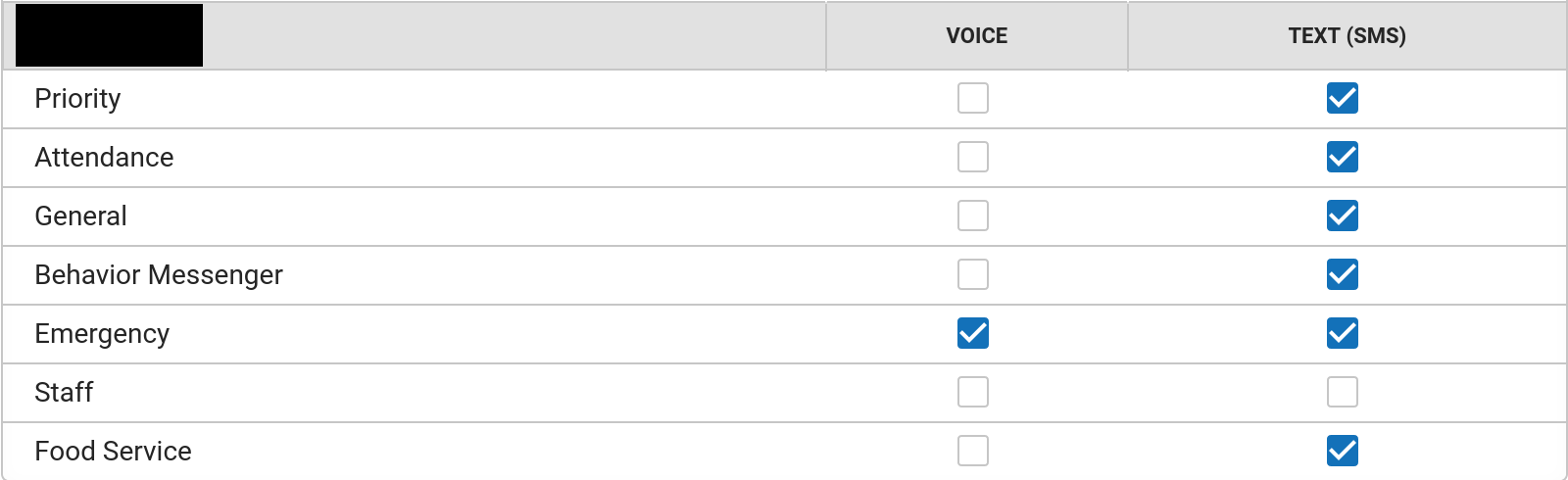
- The resulting screen will allow you to adjust the numbers and email addresses you wish to be contacted at. Additionally, it will allow you to select which type of messages you would like to receive per contact method.
In the below example, the number would receive voice (telephone calls) for emergency messages only, but would receive text messages for all types of messages besides staff messages.
Create Your Parent Account
May 2, 2018 by Tanner Crook
Creating an Infinite Campus Parent Account
If you already have a login, you can Login.
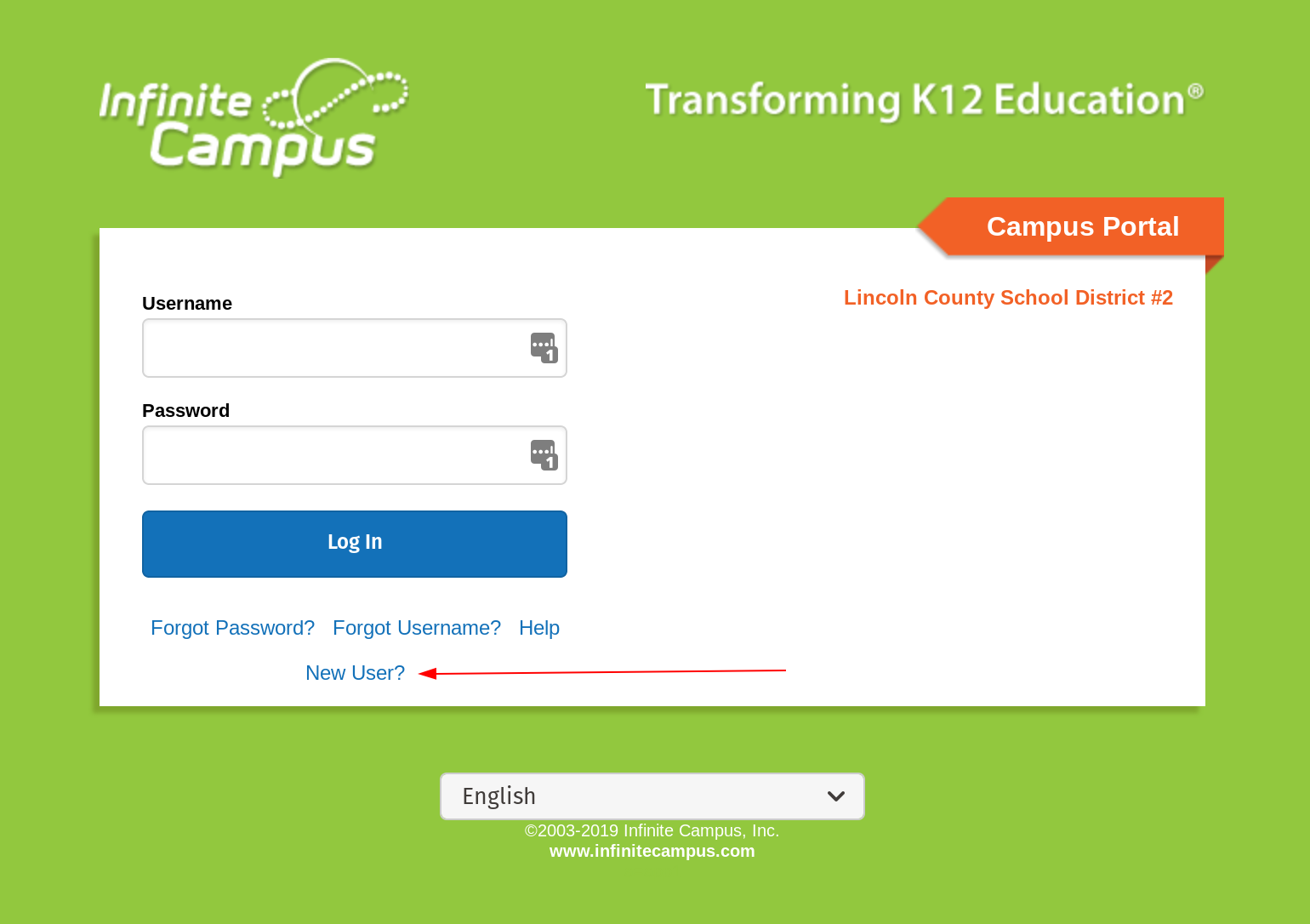
Welcome to Lincoln County School District #2’s Infinite Campus implementation! This guide will walk through the steps to create a parent account. If you have not received your activation key, please contact the school district first.
-
-
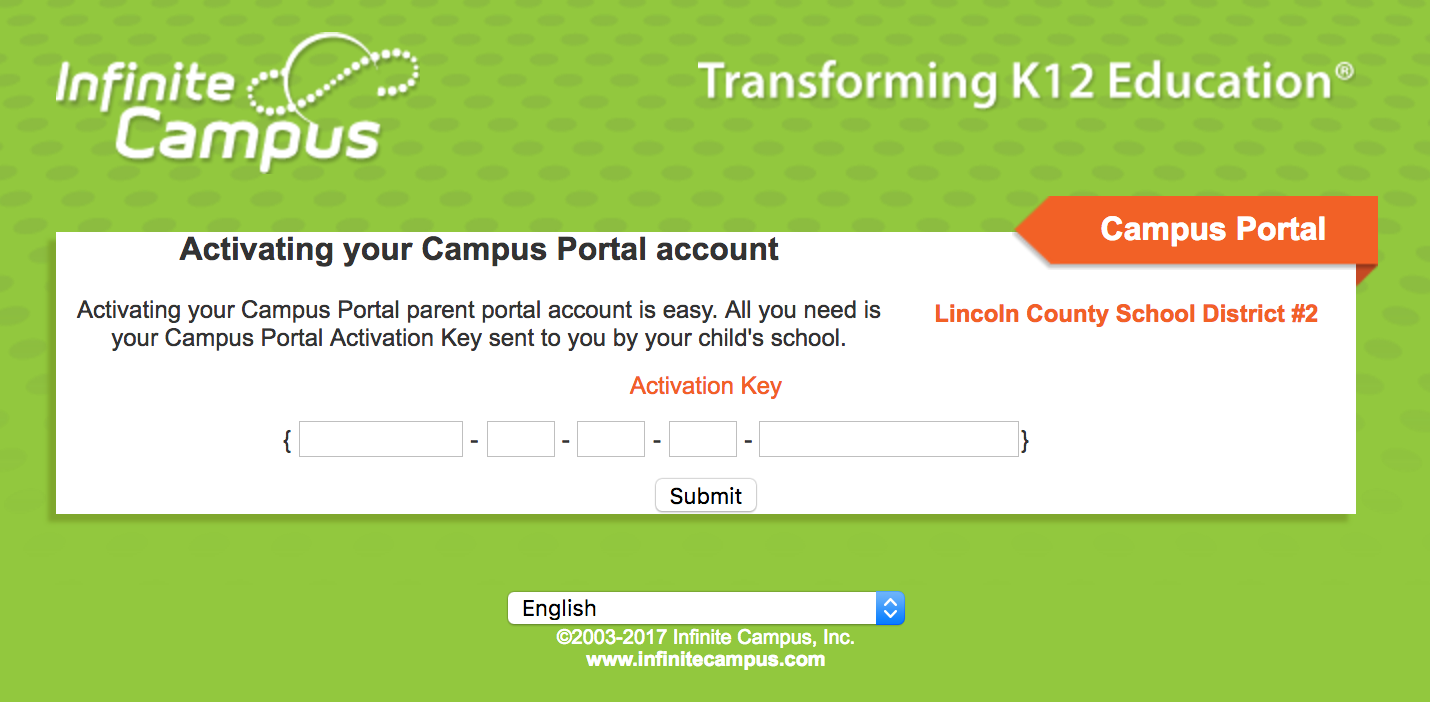
2
Insert your activation key.
-
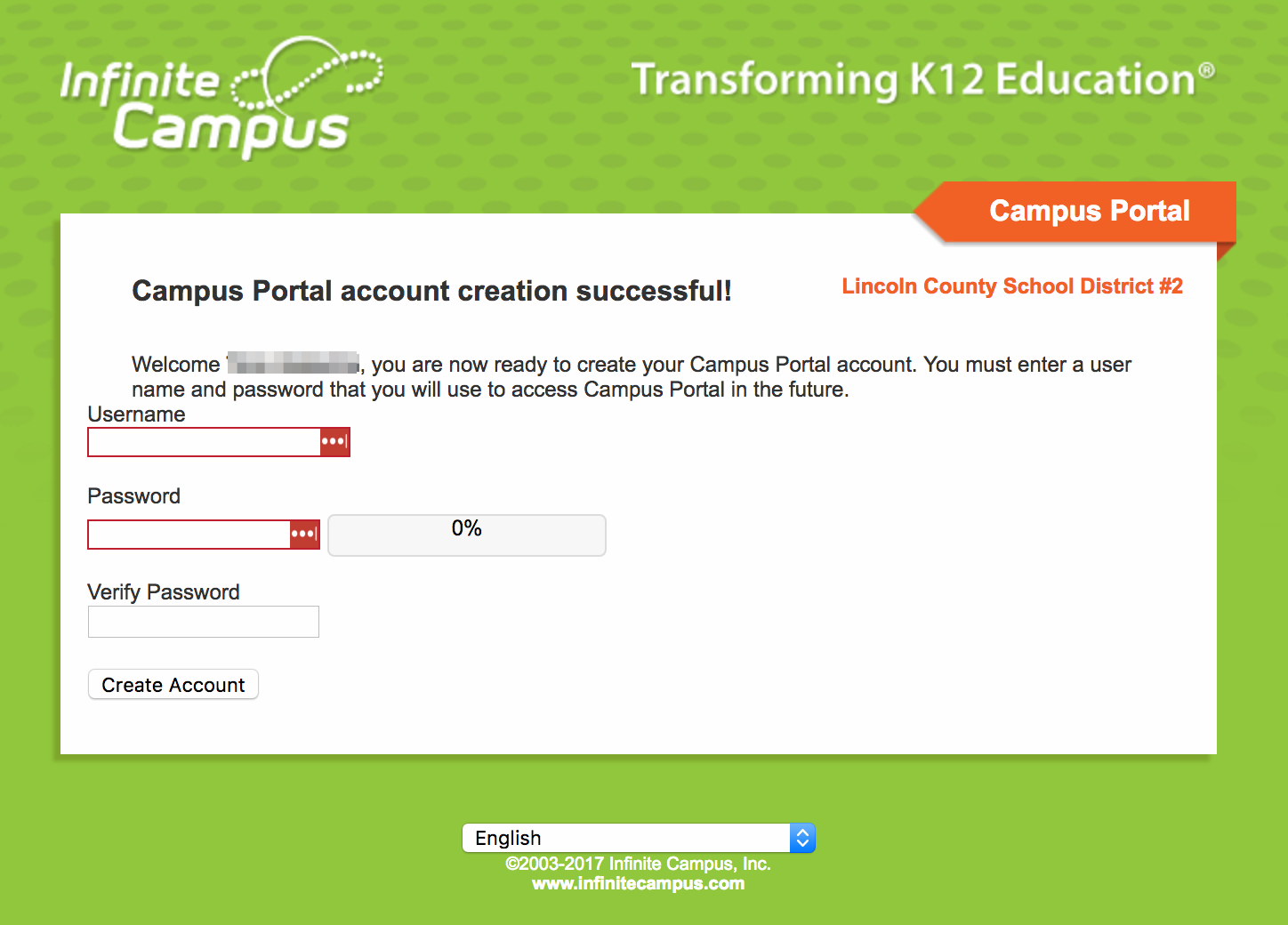
3
Create a username and password.
-
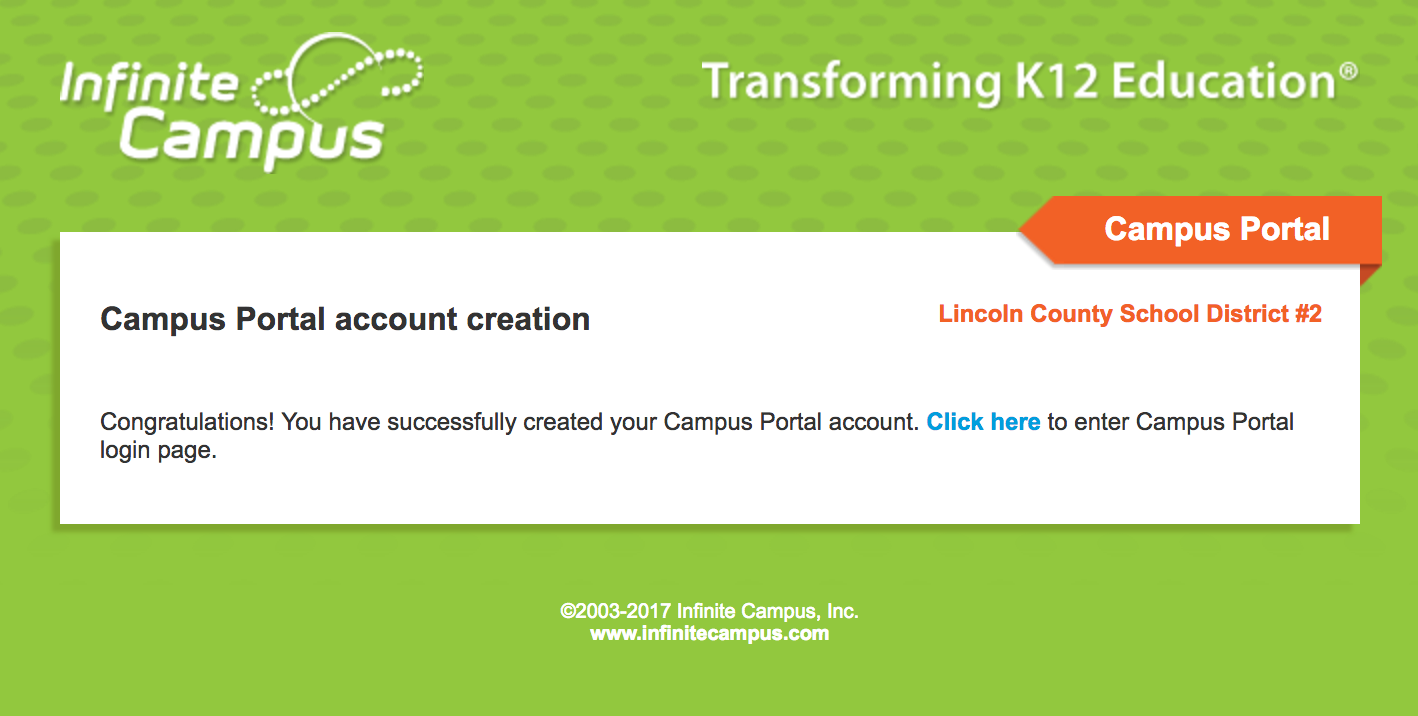
4
Click the link to navigate back to the login page and login with your new credentials you created.
The first time you log in, the system will prompt you to enter a security email for future password resets. To confirm this email, you’ll need to enter your Campus password (the same one you just created).
If you have any trouble or questions, please reach out to it@lcsd2.org
Returning Household Registration Guide
April 11, 2018 by Tanner Crook
Returning Household Registration Guide
We are glad you plan on coming back! We hope that you will find our online registration process convenient and as pain free as possible. This guide will help you access the online registration.
- Navigate to https://lcsd2.infinitecampus.org/campus/portal/lincoln2.jsp. Please make sure that you have pop-ups allowed in your browser.
- Log in using your Infinite Campus credentials. If you don’t know your credentials, you may reset your password using the forgot password link.
- On the left hand menu at the bottom section, select More > Online Registration
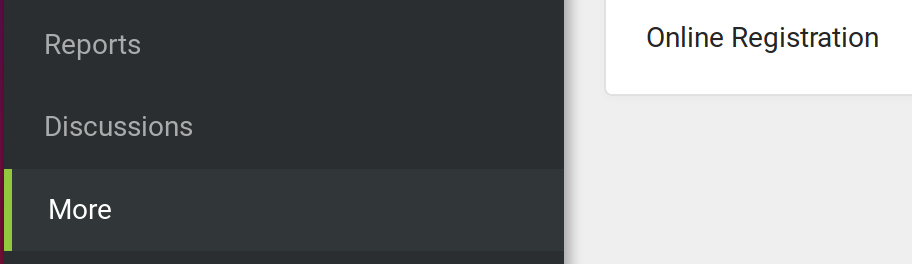
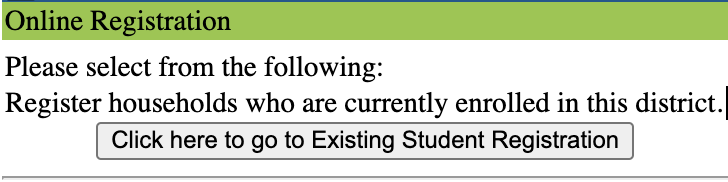
- Select ‘Click here to go to Existing Student Registration’.
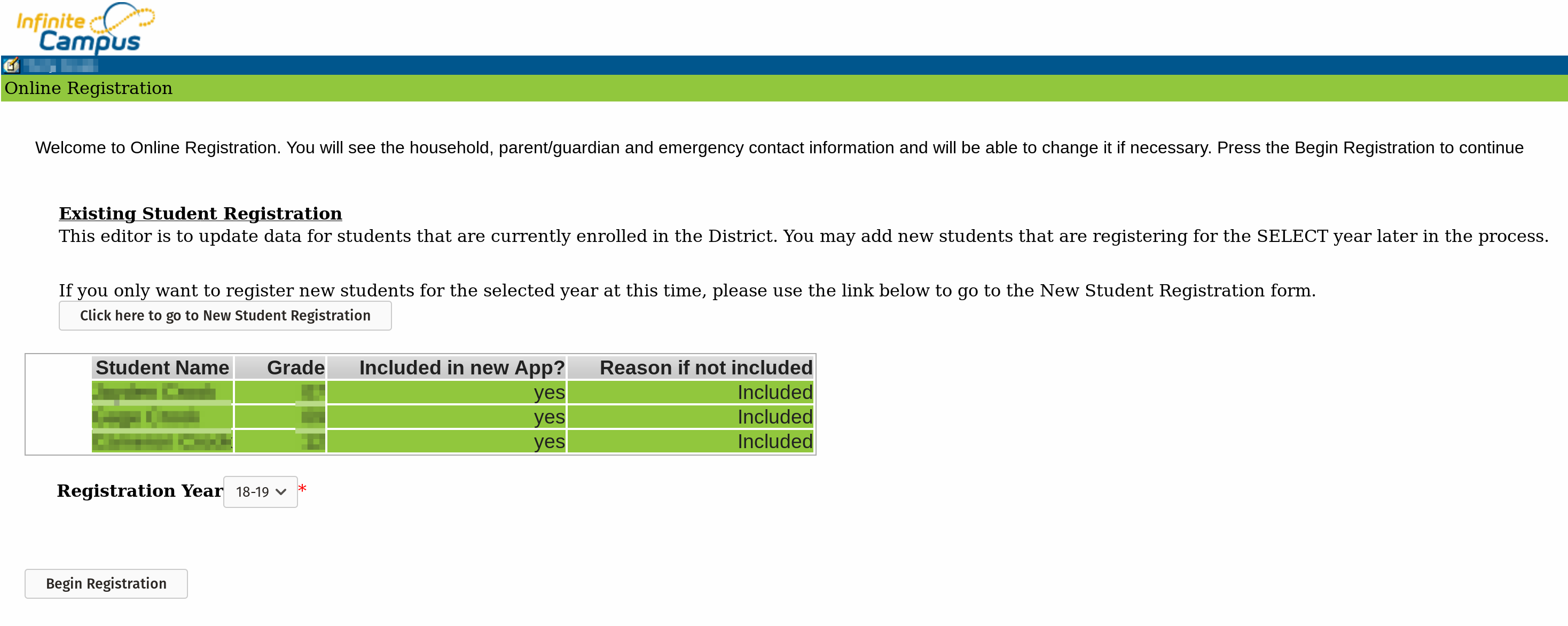
- The page will show students in your household that are currently attending LCSD#2. Select the registration year and ‘Begin Registration’. If you need to add a new student, you will have the option later.
- Select ‘Begin’, after you have noted the information.
- You will now be at the registration. Most of the information will already be present. Review each pleat and work through the tabs. You may go back and make corrections or fill in missing information if needed.
- The Household tab pleats contains information about your household such as house phone and addresses.
- The Parent/Guardian tab allows you to add parents and/or guardians to the household. For each you add, you will have additional pleats to fill out.
- The Emergency Contact tab allows you to add parents and/or guardians to the household. For each you add, you will have additional pleats to fill out. You must at least add one.
- The Other Household (Not to be enrolled) tab allows you to add other individuals in your household that are not going to be students. An example would be a child that is too young to attend Kindergarten. Adding future students now helps us plan for upcoming levels of students.
- The Student tab allows you to add students to the household. For each you add, you will have additional pleats to fill out. If you need to add a new student, you may do so here.
- Once you have filled out all of the required information, you can submit your registration.
New Household Registration Guide
by Tanner Crook
New Household Registration Guide
You should only use this guide if your household does not have any students attending LCSD#2, even if you are registering a new student. If you have existing students, please use the Returning Household Registration Guide even if you are registering a new student.
Welcome to LCSD#2! We hope that you will find our online registration process convenient and as pain free as possible. This guide will help you access the online registration.
-
- Navigate to registration.lcsd2.org. Please make sure that you have pop-ups allowed in your browser.
- Fill out the information, selecting the year that you are going to be registering for. If the year you are wishing to register for does not show in the list, we are not accepting registrations at that time. Try again later or contact a secretary. Please do not register for a previous year.


- Select ‘Begin Registration’. It will inform you that an email has been sent to the address you provided.
- In the email you received, there will be a URL. Open the URL in your browser to access the registration. If the link is not clickable, simply copy and paste the link in your browser. If you leave the registration or get disconnected at any time, you may use this link to access the registration. Your progress will be saved.
- You will reach a page where you must type your name to attest you are the person you claim to be. Type your name and select ‘Submit’, and then ‘Begin’ on the following page, after you have noted the information.
- You will now be at the registration. Fill out each pleat and work through the tabs. You may go back and make corrections or fill in missing information if needed.
- The Household tab pleats contains information about your household such as house phone and addresses.
- The Parent/Guardian tab allows you to add parents and/or guardians to the household. For each you add, you will have additional pleats to fill out.
- The Emergency Contact tab allows you to add parents and/or guardians to the household. For each you add, you will have additional pleats to fill out. You must at least add one.
- The Other Household (Not to be enrolled) tab allows you to add other individuals in your household that are not going to be students. An example would be a child that is too young to attend Kindergarten. Adding future students now helps us plan for upcoming levels of students.
- The Student tab allows you to add students to the household. For each you add, you will have additional pleats to fill out. You must at least add one.

- Once you have filled out all of the required information, you can submit your registration.
iPad Incentive Program
March 16, 2018 by bejenkins
We have an incentive program that is set up for Star Valley High School to help motivate students to do well in school. Every day, a report is generated that includes students grades from their classes. Based on that grade, we give or take away rights on the iPad that is assigned to that student. This is an automated process, but if you would like your student to be excluded from gaining access to extra apps and features on their iPad, you may call the school and ask that your student be excluded from the different levels of this program.
Below are the cutoffs and incentives of this program.
- If the student has Ds or Fs in any class (any grade less than 69.5%):
- Students will lose any music apps they have access to.
- If the student has a lowest grade of a C in any class (all grades over 69.5%):
- Students will receive access to the following apps:
- Amazon Music
- Apple Music
- Google Music
- Pandora
- Spotify
- If the student has only As and B+s (all grades over 86.5%):
- They will gain access to incentive apps, that will be made available to them through our system. This doesn’t not give them access to the App Store, just some extra apps that are selected by us. Currently, the following apps are included in the incentive apps.
- Clash Royale
- Crossy Road
- Flow Free
- Fruit Ninja
- Geometry Dash
- Helix Jump
- Piano Tiles 2
- slither.io
- Temple Run 2
- Tynker
- Zombie Catchers
- These apps will only be available during holiday breaks, and only if the parent gives the school permission to push the apps out. Note that the students will still be required to meet the grade threshold for incentive apps, even with parental consent, to get these apps.
- Amazon Prime Video
- Netflix
Requesting Extra Restrictions on iPads
August 24, 2017 by bejenkins
As a parent or guardian of a high school student, you can impose further restrictions on the iPad that your student uses in addition to the restrictions already placed there by the district.
There are a few things to consider if you want to add extra restrictions to your students iPad.
- These devices are required for school work, so you need to allow enough access for your student to complete his or her work. Please call the school and give them the passcode you use to put in the restrictions. This will allow them to adjust the restrictions if needed without having to remove them completely.
- It is not possible to loosen the restrictions already imposed by the district. You can only tighten them further.
- If you decide to restrict websites, please call the school to do this. We have a list of websites needed for schoolwork that we can restrict the students to.
Follow these steps to set up restrictions on your student’s iPad.
- Go into the Settings app.
- Select General.
- Select Restrictions
- Select Enable Restrictions
- Set a passcode (Do not give this to the student.)
- Call the school and give them the passcode.
- Allow Section – Turn off what you want disabled on the iPad.
- Safari – Do not disable this. They will need it.
- Deleting Apps – It’s preferable that this isn’t disabled, either.
- Allowed Content – Further restrict media content on the iPad.
- You can adjust ratings to be allowed in the iTunes Store or Music apps on the iPad.
- Websites – Please contact the school to set these up. We have a white list that we manage that allows students to only access sites that we know they need for school.
- Privacy
- Location Services – You can be very specific about what apps can or cannot use location services or you can turn them off completely.